A trail runner needs to pause a workout during heavy rain. A construction worker wants to activate a flashlight without removing thick gloves. A hiker stops at a junction and needs to move across an offline map.
These situations do not produce the same answer. Physical buttons work better for fast, repeatable commands, while touchscreens are more efficient for maps and detailed menus. A rugged smartwatch works best when it combines both and keeps essential functions available through physical controls.
| Situation | What the user needs to do | Better control |
|---|---|---|
| Running in the rain | Pause or change a data page | Physical buttons |
| Working with thick gloves | Open a tool or flashlight | Physical buttons |
| Climbing or cycling | Operate the watch without prolonged viewing | Physical buttons |
| Checking a trail map | Pan, scroll, or inspect a route | Touchscreen |
| Swimming or diving | Control an activity while touch is locked | Approved physical controls |
| Everyday use | Browse notifications and settings | Touchscreen or hybrid |

Caught in the Rain: Can You Still Control the Watch?
You are halfway through a trail run when rain begins covering the display. The watch shows a route alert, but the screen now has a film of water across it. Dismissing the alert or pausing the workout requires several attempts because the display registers the wrong contact—or no contact at all.
This behavior comes from the way capacitive touchscreens detect electrical changes. Water alters those conditions and can produce false or missed input. Infineon’s liquid-tolerance guidance and Microchip’s touch-sensor design guide both document this problem.
A physical button gives the runner a fixed target. One press can pause the activity or move to the next data page without wiping the display first. The touchscreen remains useful for reading pace, distance, or route information, but it becomes a less dependable way to issue commands.
Water-resistant touch technology can reduce missed input, yet performance varies between models. A rugged watch designed for rain needs physical access to start, pause, back, lap, and light functions. Touch can return to map and menu duties once the screen is clean.
Wearing Gloves in Cold Weather: Which Control Still Works?
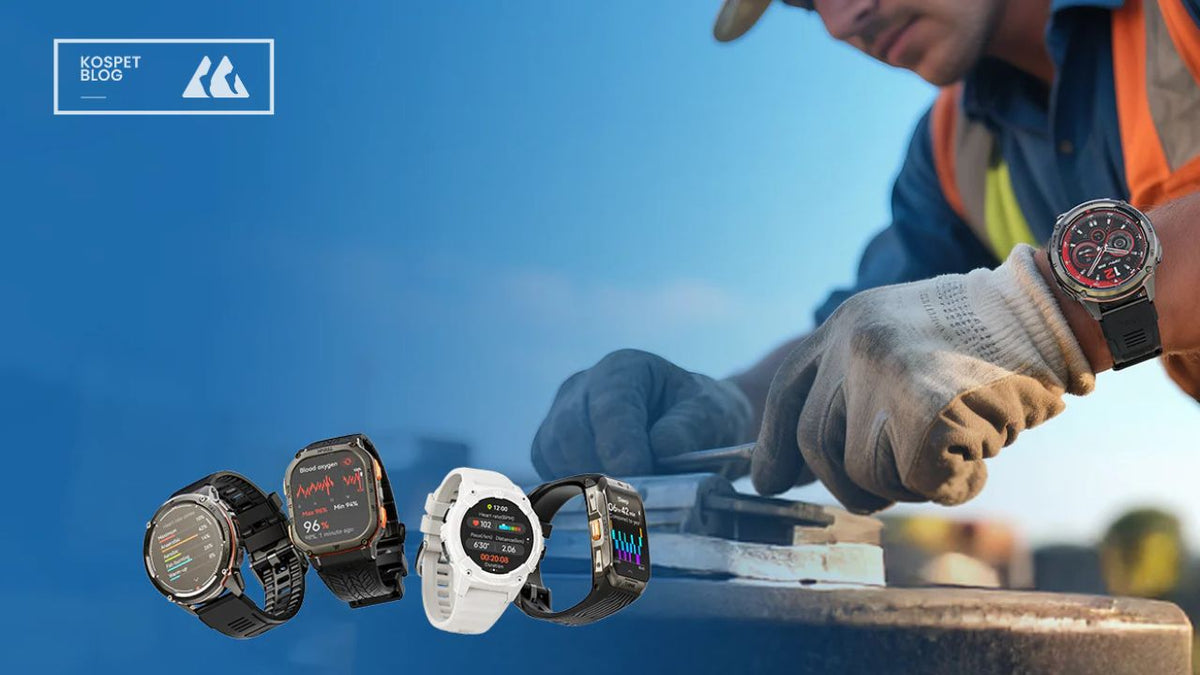
At a winter trail junction, a navigation alert appears on the watch. The wearer has thick insulated gloves and needs to check the next direction. Removing a glove exposes the hand to the cold, while tapping through the fabric produces no response.
Thin conductive gloves often work with touchscreens. Waterproof work gloves, ski gloves, and mitts present a much greater challenge because the material reduces the electrical signal reaching the display. Capacitive-sensing research identifies glove thickness as a major factor in touch detection.
Buttons avoid direct contact with the screen, but their design still matters. Raised keys are easier to locate than flush controls. Wider spacing prevents two buttons from being pressed together, while moderate resistance allows a clear press through thick fabric.
A practical test provides a better answer than a “glove-friendly” label. Wear the actual gloves, start an activity, change a screen, and return to the watch face. A suitable rugged smartwatch completes all four actions without requiring bare fingers.
Running, Climbing, or Working: Which Is Easier Without Looking?
A runner begins an interval. A climber keeps one hand on a hold. A worker carries equipment while reaching for the watch with the other hand. In each case, attention belongs on the activity rather than on a small display.
Touchscreen control requires the user to raise the wrist, locate the correct icon, and make an accurate tap. Body movement makes that sequence harder. Missing the target creates another glance and another attempt.
Buttons turn common actions into repeatable gestures. The wearer learns which key starts an activity, records a lap, changes a page, or activates a shortcut. Official exercise manuals regularly assign start, pause, and workout navigation to hardware controls, as shown in workout-control instructions and button-operated exercise guidance.
The task determines the best interface:
- Starting, pausing, and recording laps belong on buttons.
- Moving between live data pages works well through buttons or a crown.
- Reviewing charts and changing several settings works better through touch.
- Safety features need a dedicated or clearly mapped hardware shortcut.
Any command required while the body is moving needs a physical control path. Detailed analysis can wait until the user reaches a stable position.
Checking Maps on the Trail: Where Touchscreen Wins
A hiker reaches a fork where two trails run in similar directions. The watch displays an offline map, but the user needs to move beyond the current position, inspect a nearby turn, and check the route farther ahead.
Buttons can open the map and change zoom levels, but moving across it one step at a time becomes slow. Touch allows the user to drag directly toward the area of interest. The movement of the finger matches the movement of the map, making route inspection more natural.
The same advantage applies to long menus, notifications, health charts, and lists of saved locations. Swiping covers information faster than repeated key presses, while a direct tap reaches the required item without cycling through nearby options. Official touchscreen guidance demonstrates how swipe and tap gestures support these tasks.
The most effective trail workflow uses both interfaces. A button opens the map while the user is moving. Touch takes over once the hiker stops and needs to inspect the route. The physical back control then returns the watch to the main activity screen.
Touchscreens are not a weakness in rugged watches. They become a weakness only when the product relies on them for every action.
Swimming and Diving: What Works Underwater?
A swimmer reaches the end of a set and wants to pause the workout. Water covers the screen, so the watch locks touch input to prevent random taps. The display remains visible, but swiping no longer controls the activity.
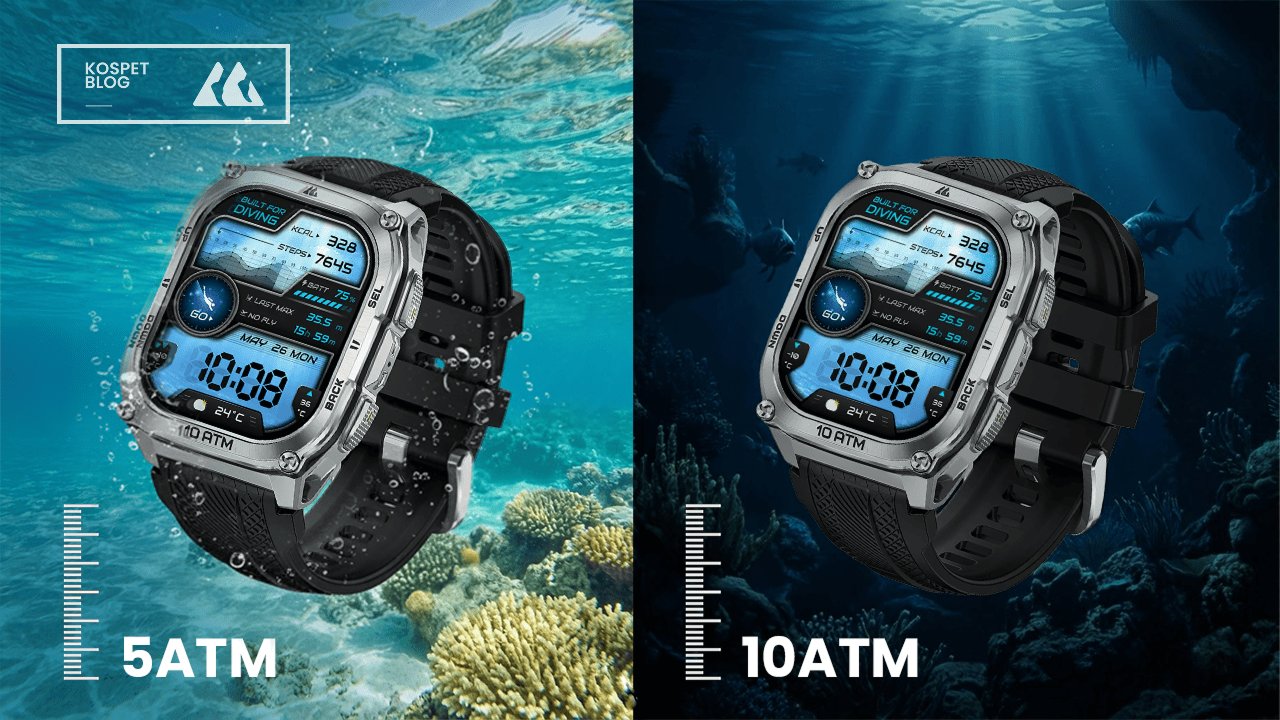
Water Lock is designed for exactly this situation. It disables touchscreen input while allowing the watch to continue displaying workout data. Official swimming documentation shows how physical controls take over essential commands.
The presence of buttons does not automatically make them safe to press underwater. Water resistance describes protection under specific test conditions; underwater control also depends on button seals, depth, pressure, and the activities approved by the manufacturer.
Some device manuals explicitly prohibit pressing buttons below the surface. Official device-care guidance illustrates why a water-resistance rating alone does not answer the control question.
Before swimming or diving, users need to confirm three details:
- The activities covered by the water rating
- The maximum supported depth
- The controls approved for underwater use
For water-based activities, the product manual matters more than general labels such as “rugged” or “waterproof.”
Why Hybrid Controls Work Best on a Rugged Smartwatch
The previous scenarios require different kinds of input. Rain, gloves, and movement favor physical buttons. Maps and long menus favor touch. Water-based activities need locked touchscreens and approved hardware controls.
The following product recommendations are based on official control layouts and published durability specifications. They do not represent a standardized hands-on test or a ranking of long-term reliability.
| Product | Confirmed control design | Detail requiring verification |
|---|---|---|
| KOSPET TANK T4 | 1.43-inch AMOLED touchscreen, four buttons, offline maps, Gorilla Glass 3, 10 ATM and IP69K ratings | Complete navigation through buttons with touch disabled |
| Suunto Vertical 2 | Touchscreen, three-button navigation, touch lock, glove-friendly operation, offline maps | Button feel with the user’s own gloves |
| Garmin fēnix 8 | Touchscreen, multi-button interface, configurable touch disabling | Activity-specific and underwater control rules |
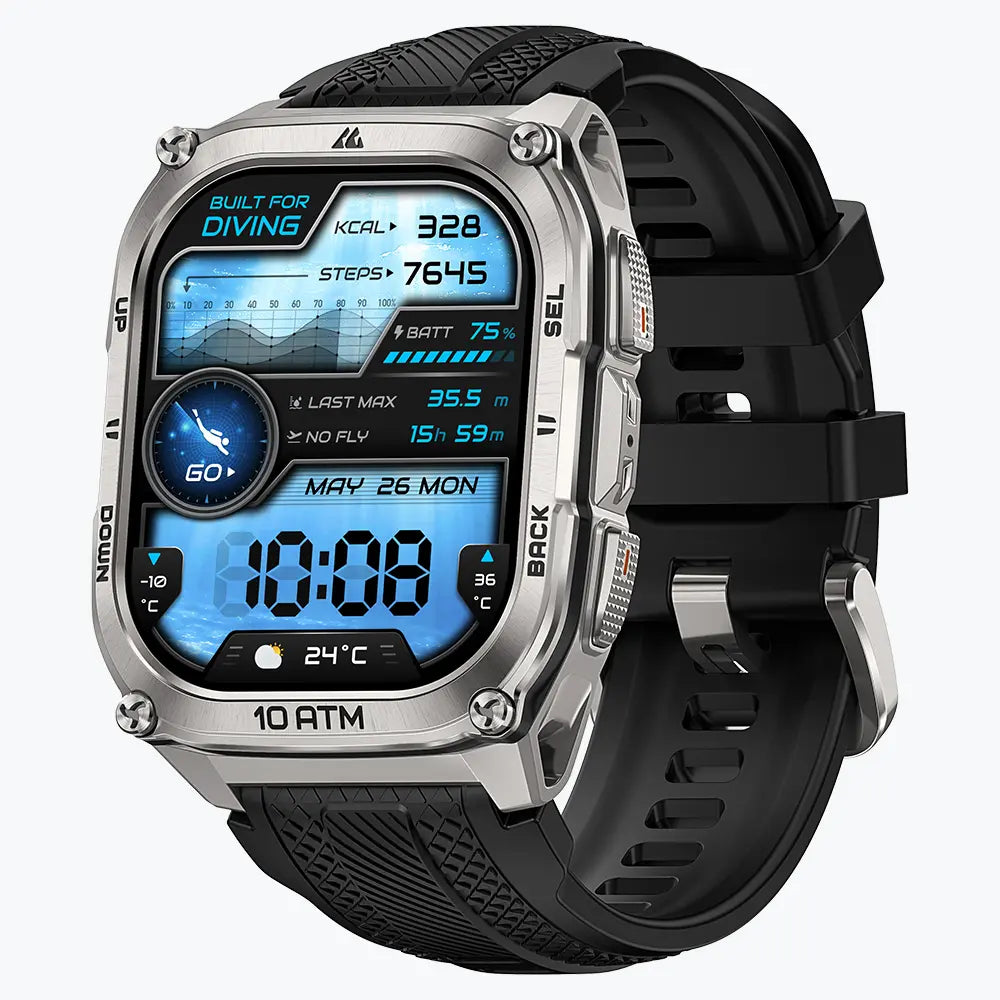
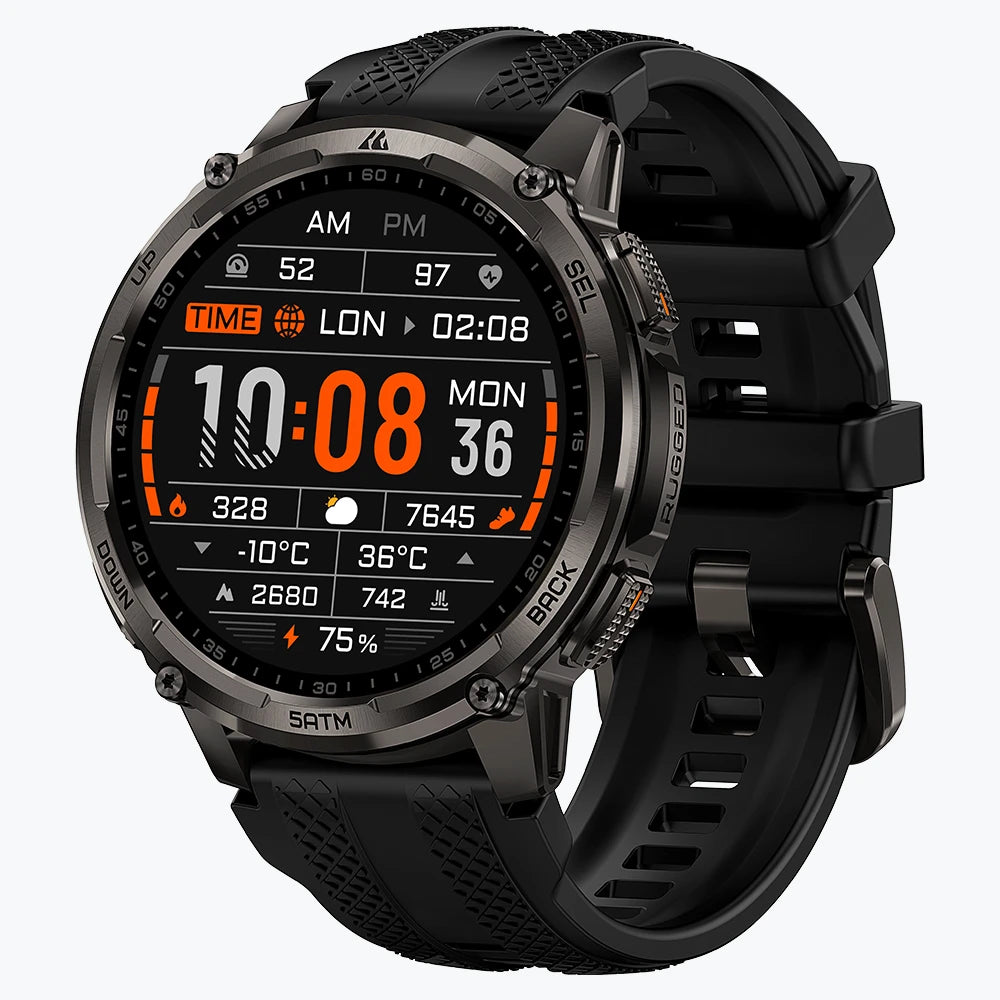
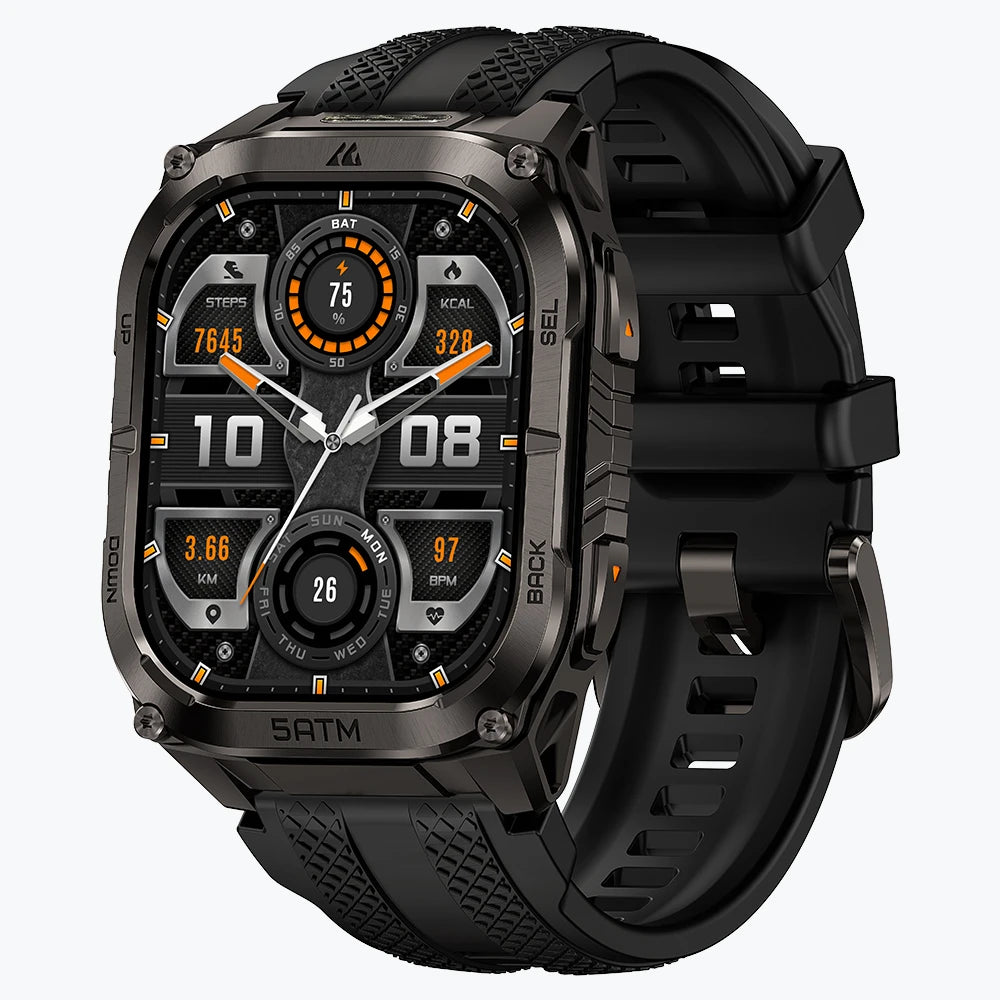
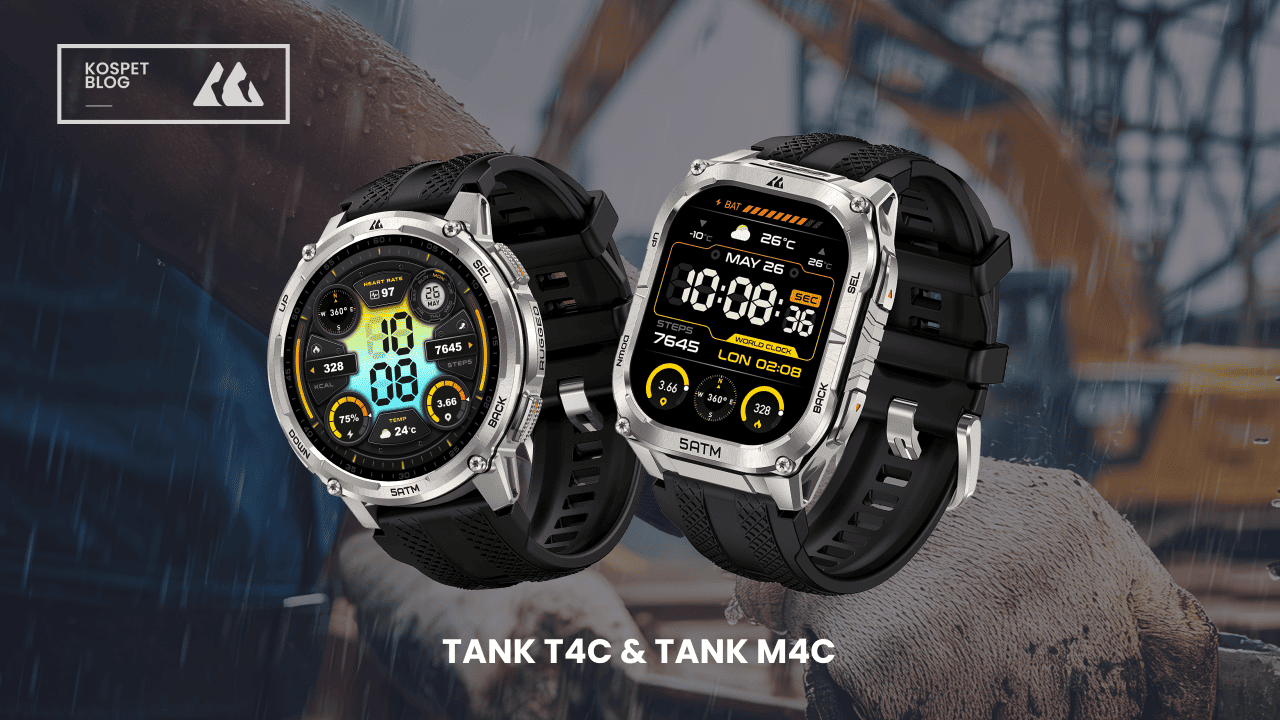
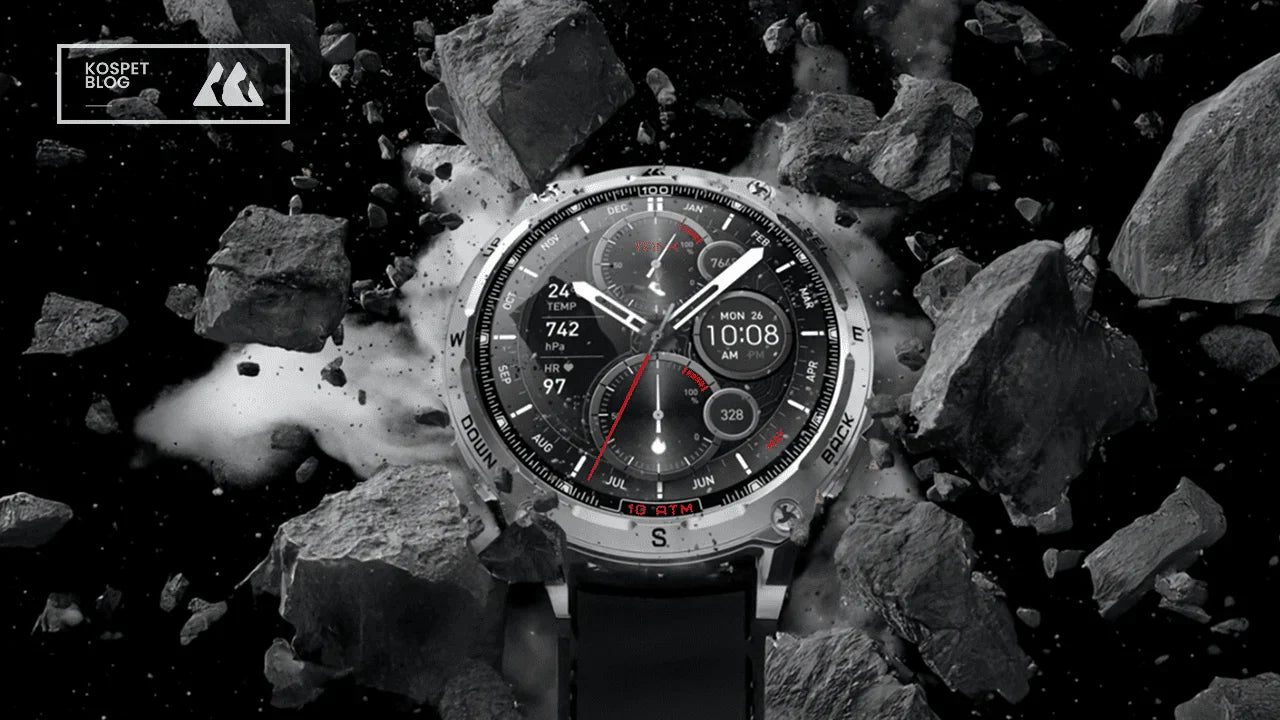
The KOSPET TANK T4 combines a large touchscreen with four physical buttons. Touch supports offline-map viewing and detailed data, while the additional keys provide more control options than a single home button. Its stainless-steel body and manufacturer-listed testing based on 20 MIL-STD-810H methods support its rugged positioning.
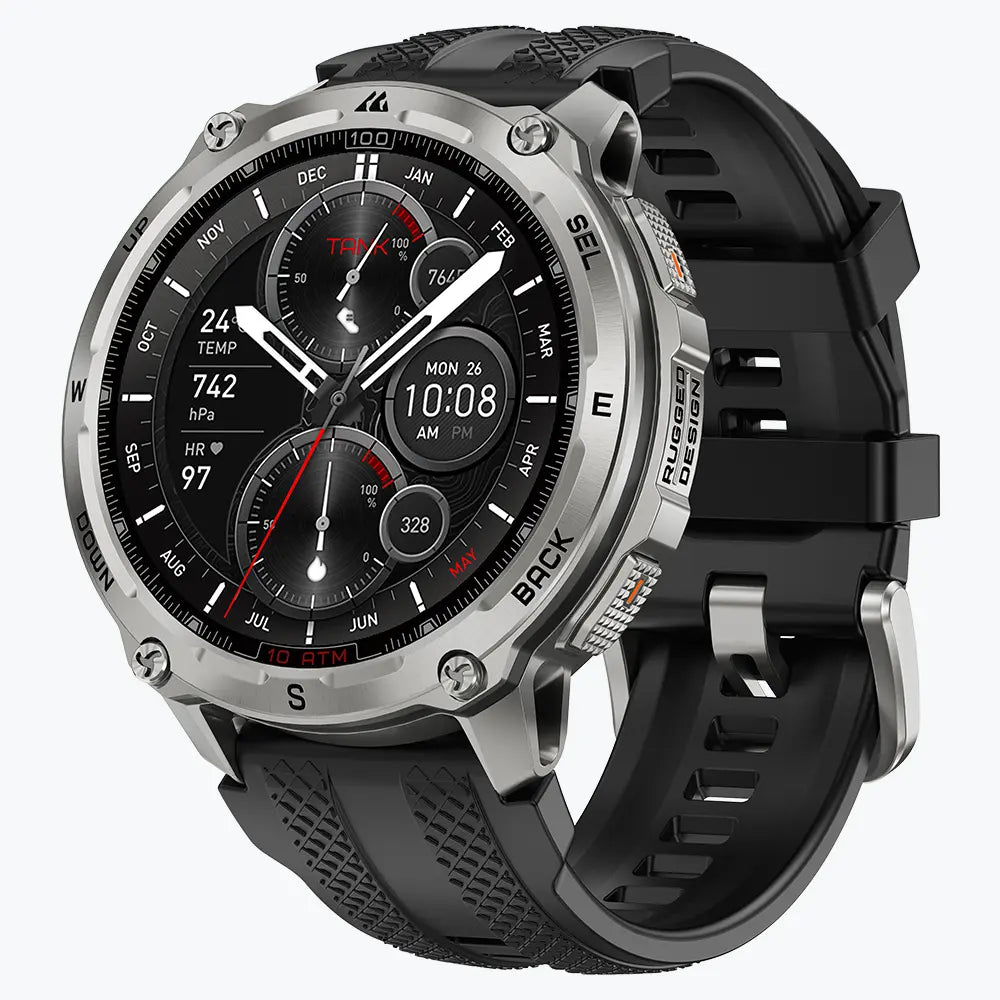
كوسبيت TANK ساعة ذكية T4
$209.99 USD
The Suunto Vertical 2 provides clearer documentation for button-controlled navigation. Three keys cover movement, selection, back, and shortcuts, while touch handles swipes and direct selection. Touch locking and documented glove operation make it suitable for hiking and winter sports.
The Garmin fēnix 8 focuses on control customization. Touch input can be disabled through a button combination or system settings, leaving a broad physical interface available. Official touch-control instructions document these methods.
The right choice depends on the main activity. The KOSPET TANK T4 offers a prominent four-button configuration and offline maps. The Suunto Vertical 2 has the clearest published evidence for glove-friendly button navigation. The Garmin fēnix 8 provides deeper control customization.
FAQs
Can You Turn Off the Touchscreen and Use Only the Buttons?
Three separate features can appear in product descriptions:
- Screen Lock prevents accidental input.
- Touch Disable switches off touchscreen control.
- Full Button Navigation keeps essential functions accessible without touch.
Only full button navigation provides a complete physical fallback. The manual needs to identify which functions remain available after touch is disabled.
Are Physical Buttons More Durable Than a Touchscreen?
Neither interface is automatically more durable. Buttons contain moving parts and seals, while touchscreens expose glass to impact and scratches. Lens material, bezel protection, button construction, ingress sealing, and testing standards determine long-term durability.
How Many Buttons Does a Rugged Smartwatch Need?
One button usually covers power, home, or a shortcut. Two or three buttons can support selection, back, and page movement. Four or five controls create a more complete route through workouts and menus.
Button function matters more than quantity. Three well-mapped controls can provide a better experience than four limited shortcut keys.
Does a Rotating Crown Replace Physical Buttons?
A crown works well for scrolling, menu movement, and map zoom. It does not fully replace dedicated start, pause, back, lap, or emergency controls. A crown works best alongside one or two separate action buttons.